| |

| MZCacheView v2.22 - View the cache files of Firefox Web browsers
Copyright (c) 2007 - 2024 Nir Sofer
|
Related Utilities
Description
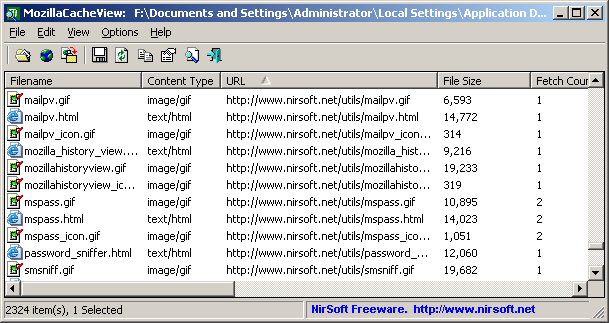
MZCacheView is a small utility that reads the cache folder of Firefox/Mozilla/Netscape Web browsers,
and displays the list of all files currently stored in the cache.
For each cache file, the following information is displayed: URL, Content type, File size, Last modified time,
Last fetched time, Expiration time, Fetch count, Server name, and more.
You can easily select one or more items from the cache list, and then extract the files to another folder, or
copy the URLs list to the clipboard.
Notice:
The name of this tool was changed from MozillaCacheView to MZCacheView due to the obsession of Mozilla Foundation people with their registered trademark.
I have received a threatening letter from the attorney of Mozilla Foundation saying that using the 'Mozilla' word inside the name of my software infringes their trademark rights
and demanding that I'll change the name of this tool.
In order to avoid from any trouble in the future, I decided to change the name of this tool to MZCacheView.
System Requirements
This utility works on any version of Windows, From Windows 98 to Windows 11.
You can use this utility even if Firefox/Mozilla is not installed on your system, as
long as you have the entire cache folder that you want to inspect.
Versions History
- Version 2.22:
- You can now use any variable inside the .cfg file as command-line option in order to change the configuration from command-line, for example - this command turns on the 'Add Header Line To CSV/Tab-Delimited File' option:
MZCacheView.exe /AddExportHeaderLine 1
- Version 2.21:
- Added 'Show Milliseconds In Time' option (For 'Last Modified' and 'Last Fetched' columns).
- Version 2.20:
- Updated the time filter options, and now you can choose to view the cache files in the last xx seconds/minutes/hours.
- Version 2.15:
- Added option to change the sorting column from the menu (View -> Sort By). Like the column header click sorting, if you click again the same sorting menu item, it'll switch between ascending and descending order. Also, if you hold down the shift key while choosing the sort menu item, you'll get a secondary sorting.
- Version 2.10:
- Updated the preview pane to display webp image files.
- Version 2.05:
- In the 'Copy Selected Cache Files To' option: You can now choose 4 different time fields to set the modified time of the copied cache file - Server Last Modified, Server Time, Last Modified, and Last Fetched.
- Added 'Content Disposition' column.
- Version 2.02:
- Fixed to display the correct URL on the latest versions of Firefox.
- Updated to read the expiration time on the latest versions of Firefox.
- Fixed the automatic cache folder detection on the latest versions of Firefox.
- Version 2.01:
- Added 'Copy Clicked Cell' option to the right-click context menu, which copies to the clipboard the text of cell that you right-clicked with the mouse.
- Version 2.00:
- Added 'Show Preview Pane' option (View -> Show Preview Pane). When It's turned on, a preview pane is added and allows you to quickly view the selected image ( gif, png, jpg files) or text-based file (HTML, CSS, JSON, JavaScript).
- Added 'Preview Copy' option (Ctrl+P), which allows you to copy to the clipboard the image or text displayed in the preview pane.
- Fixed to display the correct URL on the latest versions of Firefox.
- Added 'Web site' column, which displays which Web site loaded the specified cache file.
- Version 1.95:
- Added support for decompressing Brotli compressed files (Content Encoding = br ).
- Version 1.90:
- Added 'Enter Key Action' option, which allows you to choose what to do when you press the Enter key: Properties Window, Open Selected Cache File, Open Link In Web Browser, Open Cache Subfolder, Open With
- Version 1.85:
- Fixed the 'Fetch Count' column to display the correct value in the latest versions of Firefox.
- You can now resize the properties window, and the last size/position of this window is saved in the .cfg file.
- Version 1.81:
- Fixed issue: When pressing the Delete key while the text-box of Quick Filter was in focus, MZCacheView activated the delete option instead of the deleteing a character in the text-box.
- Version 1.80:
- Added 'Collect Full Response Headers' option. When it's turned on, you can use the 'Copy Full Response Header' option (Ctrl+H) to copy
to the clipboard the full response HTTP header sent by the server.
- Fixed bug: For some cache items, some of the information was missing because MZCacheView failed to locate the HTTP header.
- Version 1.76:
- Fixed bug: MZCacheView displayed wrong items when sorting while the 'Quick Filter' is active.
- Version 1.75:
- Added 'Quick Filter' feature (View -> Use Quick Filter or Ctrl+Q). When it's turned on, you can type a string in the text-box added under the toolbar and MZCacheView will instantly filter the cache table, showing only items that contain the string you typed.
- Version 1.70:
- Fixed bug: When pressing Delete key inside the text-box of the Find window, MZCacheView asked you if you want to delete the selected item instead of deleting a character inside the find text-box.
- Version 1.69:
- Fixed issue: When loading large amount of cache items, some actions, like selecting items and copying selected items to the clipboard were very slow.
- Version 1.68:
- MozillaCacheView now loads the cache faster if you use the date/time filtering options.
- Version 1.67:
- Fixed bug: MozillaCacheView failed to delete cache files on the new cache structure of Firefox 32.
- Added 'URL Length' column
- Version 1.66:
- Fixed to find the correct item when typing the string you want to search into the main List View.
- Added secondary sorting support: You can now get a secondary sorting, by holding down the shift key while clicking the column header. Be aware that you only have to hold down the shift key when clicking the second/third/fourth column. To sort the first column you should not hold down the Shift key.
- Version 1.65:
- Added support for the new cache structure of Firefox 32.
- Version 1.62:
- Added 'Subfolder' column.
- Version 1.61:
- Fixed bug: MozillaCacheView failed to copy the cache files if 'Save the files in the directory structure of the Web site' option was turned on and
the Web site used non-standard TCP port (Instead of port 80).
- Fixed to display date/time values according to daylight saving time settings.
- Version 1.60:
- Added 'Load only files larger than...' and 'Load only files smaller than...' options. (In 'Select Cache Folder' window)
- Version 1.57:
- MozillaCacheView crashed on some systems while reading the cache files.
- Fixed issue: The properties and the other windows opened in the wrong monitor, on multi-monitors system.
- Added 'Auto Size Columns+Headers' option, which allows you to automatically resize the columns according to the row values and column headers.
- Version 1.56:
- Fixed issue: MozillaCacheView left multiple files under the temp folder when extracting files compressed with gzip.
- Version 1.55:
- MozillaCacheView now loads the cache items much faster and with less memory usage, especially if you have
a large amount of items in the cache.
- Version 1.52:
- Fixed MozillaCacheView to detect the correct cache folder if the user changed it from Firefox config (browser.cache.disk.parent_directory).
- Version 1.51:
- Fixed bug: MozillaCacheView displayed only cache items in the last few days, even if the
'Load only cache files from the last xx days' option was turned off.
- Version 1.50:
- Added new options in the 'Select Cache Folder' window:
Load only cache files from the last xx days, and
Load only cache files in the following time range.
- You can now stop the cache scanning by clicking the stop menu.
- Version 1.40:
- Added 'Open Cache Subfolder' option (for Firefox 4.x)
- Added 'Open With' option.
- Added 'Double-Click Action' option, which allows you to choose
what to do when you double-click on cache item - Properties Window,
Open File In Cache, Open URL In Browser, Open Cache Sub-Folder, or Open With...
- Version 1.37:
- The status bar now displays the total size of selected files in KB/MB. (Only existing files are accumulated)
- Version 1.36:
- Fixed to work properly with the cache of Firefox 4 (Beta).
- Version 1.35:
- Added 'Open Selected Cache File' option.
When you use this option, the selected file is extracted into a temporary folder,
and then it's open with the default file viewer.
The temporary file/folders are automatically deleted when you close MozillaCacheView.
- Version 1.31:
- Added 'Add Header Line To CSV/Tab-Delimited File' option. When this option is turned on, the column names are added
as the first line when you export to csv or tab-delimited file.
- Version 1.30:
- Fixed bug: /copycache failed to copy cache files stored inside _CACHE_001_, _CACHE_002_, and _CACHE_003_ files.
- Fixed bug: For some Web sites (like Google Books), the 'Content Type' column displayed wrong value.
- Version 1.27:
- Fixed bug: MozillaCacheView failed to copy cache files because the filenames contained
invalid file characters (?, :, *, |, and others).
- Version 1.26:
- Add /sort option for sorting the cache list that you save from command-line.
- Version 1.25:
- Added support for saving cache files from command-line.
- Version 1.21:
- Added new option in 'Copy Selected Cache Files': Update the modified time of the copied files according to modified time in the Web server.
- Version 1.20:
- Added support for cache filter. (Display only URLs which contain the specified filter strings)
- Version 1.17:
- Fixed bug: in some cases, MozillaCacheView crashed when loading the cache.
- Version 1.16:
- Added 'Hide Missing Cache Files' option.
- Fixed bug: In some systems, MozillaCacheView didn't display all cache files.
- Version 1.15:
- New option in 'Copy Selected Cache Files To...': Save the files in the directory structure of the Web site.
- Version 1.12:
- Added AutoComplete to the cache folders combo-box
- Version 1.11:
- Added 'Cache Control' and 'ETag' columns.
- Version 1.10:
- New option: Remember the selected cache folder.
- Version 1.09:
- The dialog-boxes are now resizable.
- Version 1.08:
- The URLs in HTML report are now created as links.
- Version 1.07:
- Added AutoComplete to 'Copy Selected Files To'.
- Fixed bug: The main window lost the focus when the user switched to another application and then returned back to MozillaCacheView.
- Version 1.06:
- Added support for saving as comma-delimited text file.
- Version 1.05:
- New column: Cache Name.
- New column: Missing File.
- New option: Mark Missing Cache Files.
- Added new option:'Copy as new name if filename already exists'.
- Added new option: 'Delete Selected Cache Files' (Works only for items that have a cache name).
- Version 1.02:
- Fixed the text-length limit problem in the cache folder combo-box.
- Version 1.01:
- Added filter by file type (application, image, text/html, video, and audio)
- New Option: Show Zero-Lenth Files
- New Option: Show Files With Error Server Response.
- Version 1.00 - First release.
The Location Of Mozilla Cache Folder
The cache folder of Mozilla Firefox is located under C:\Documents and Settings\[User Name]\Local Settings\Application Data\Mozilla\Firefox\Profiles\[Profile Name]\Cache
The cache folder of SeaMonkey is located under C:\Documents and Settings\[User Name]\Local Settings\Application Data\Mozilla\Profiles\[Profile Name]\Cache
For other variants of Mozilla, you may find the cache folder under C:\Documents and Settings\[User Name]\Application Data\Mozilla\Profiles\[Profile Name]\Cache
Using MZCacheView
MZCacheView doesn't require any installation process or additional DLL files. Just copy the executable file (MozillaCacheView.exe) to any folder you like, and run it.
After you run it, the main window displays the list of files currently stored in the cache of the Mozilla/Firefox profile that you used in the last time.
If you want to view the cache of another profile, simply use the 'Select Cache Folder' option (F9), and choose the desired cache folder.
You can select one or more cache files from the list, and than export the list into text/html/xml file ('Save Selected Items' option),
copy the URL list to the clipboard (Ctrl+U), copy the entire table of cache files (Ctrl+C), and then paste it to Excel or to OpenOffice spreadsheet.
You can also extract the actual files from the cache, and save them into another folder, You can do that by using the
'Copy Selected Cache Files To' option (F4).
Notice...
In order to watch the latest cache files, you must close all windows of Firefox, because only when you do that,
Firefox saves the cache index files into the disk.
Notice For Delete Option
When you delete files from the cache, MozillaCacheView delete the cache files, but it doesn't delete the reference to them in the cache index file.
This means that even after you delete files from the cache, you'll still see them in the list, but the 'Missing File' column will be turned from 'No' to 'Yes'.
Command-Line Options
|
/stext <Filename>
| Save the list of all cache files into a regular text file.
| |
/stab <Filename>
| Save the list of all cache files into a tab-delimited text file.
| |
/scomma <Filename>
| Save the list of all cache files into a comma-delimited text file.
| |
/stabular <Filename>
| Save the list of all cache files into a tabular text file.
| |
/shtml <Filename>
| Save the list of all cache files into HTML file (Horizontal).
| |
/sverhtml <Filename>
| Save the list of all cache files into HTML file (Vertical).
| |
/sxml <Filename>
| Save the list of all cache files to XML file.
| |
/sort <column>
|
This command-line option can be used with other save options for sorting by the desired column.
If you don't specify this option, the list is sorted according to the last sort that you made from the user interface.
The <column> parameter can specify the column index (0 for the first column, 1 for the second column, and so on) or
the name of the column, like "Content Type" and "Filename".
You can specify the '~' prefix character (e.g: "~URL") if you want to sort in descending order.
You can put multiple /sort in the command-line if you want to sort by multiple columns.
Examples:
MozillaCacheView.exe /shtml "f:\temp\1.html" /sort 2 /sort ~1
MozillaCacheView.exe /shtml "f:\temp\1.html" /sort "~Content Type" /sort "File Size"
| |
/nosort
|
When you specify this command-line option, the list will be saved without any sorting.
| |
-folder <Cache Folder>
|
Start MozillaCacheView with the specified cache folder.
| |
/copycache <URL> <Content Type>
|
Copy files from the cache into the folder specified in /CopyFilesFolder parameter.
In the <URL> parameter, you can specify the URL of the Web site (for example: http://www.nirsoft.net) or empty string ("") if you want to copy files from all Web sites.
In the <Content Type> parameter, you can specify full content type (like image/png), partial content type (like 'image') or empry string ("") if you want to copy all types of files.
| |
/CopyFilesFolder <Folder>
|
Specifies the folder to copy the cache files.
| |
/UseWebSiteDirStructure 0 | 1
|
Save the files in the directory structure of the Web site. 0 = No, 1 = Yes
| |
/UpdateModifiedTime 0 | 1
|
Update the modified time of the copied files according to modified time in the Web server. 0 = No, 1 = Yes
| |
/NewNameIfExist 0 | 1
|
Copy as new name if filename already exists. 0 = No, 1 = Yes
|
Examples:
MozillaCacheView.exe -folder "C:\Documents and Settings\Administrator\Local Settings\Application Data\Mozilla\Firefox\Profiles\acf2c3u2.default\Cache"
MozillaCacheView.exe -folder "C:\Documents and Settings\Administrator\Local Settings\Application Data\Mozilla\Firefox\Profiles\acf2c3u2.default\Cache" /shtml c:\temp\mz.html
MozillaCacheView.exe /stext c:\temp\mz.txt
Copy Cache Examples:
- Copy all cache files of www.nirsoft.net to f:\temp in the directory structure of the Web site:
/copycache "http://www.nirsoft.net" "" /CopyFilesFolder "f:\temp" /UseWebSiteDirStructure 1
- Copy all image cache files of www.nirsoft.net to f:\temp:
/copycache "http://www.nirsoft.net" "image" /CopyFilesFolder "f:\temp" /UseWebSiteDirStructure 0
- Copy all .png files from the cache to f:\temp:
/copycache "" "image/png" /CopyFilesFolder "f:\temp" /UseWebSiteDirStructure 0
- Copy all files from the cache to f:\temp:
/copycache "" "" /CopyFilesFolder "f:\temp" /UseWebSiteDirStructure 0
Translating MZCacheView to other languages
In order to translate MZCacheView to other language, follow the instructions below:
- Run MZCacheView with /savelangfile parameter:
MozillaCacheView.exe /savelangfile
A file named MozillaCacheView_lng.ini will be created in the folder of MozillaCacheView utility.
- Open the created language file in Notepad or in any other text editor.
- Translate all string entries to the desired language.
Optionally, you can also add your name and/or a link to your Web site.
(TranslatorName and TranslatorURL values) If you add this information, it'll be
used in the 'About' window.
- After you finish the translation, Run MZCacheView, and all translated
strings will be loaded from the language file.
If you want to run MZCacheView without the translation, simply rename the language file, or move
it to another folder.
License
This utility is released as freeware.
You are allowed to freely distribute this utility via floppy disk, CD-ROM,
Internet, or in any other way, as long as you don't charge anything for this.
If you distribute this utility, you must include all files in
the distribution package, without any modification !
Disclaimer
The software is provided "AS IS" without any warranty, either expressed or implied,
including, but not limited to, the implied warranties of merchantability and fitness
for a particular purpose. The author will not be liable for any special, incidental,
consequential or indirect damages due to loss of data or any other reason.
Feedback
If you have any problem, suggestion, comment, or you found a bug in my utility,
you can send a message to nirsofer@yahoo.com
MZCacheView is also available in other languages. In order to change the language of
MZCacheView, download the appropriate language zip file, extract the 'mzcacheview_lng.ini',
and put it in the same folder that you Installed MZCacheView utility.
|
|