| |

| OfficeIns v1.20 - Office Add-ins Manager
Copyright (c) 2004 - 2015 Nir Sofer
|
Related Links
- NK2Edit - Edit, merge and fix the AutoComplete files (.NK2) of Microsoft Outlook.
Description
OfficeIns is a small utility that displays the details of all installed Microsoft Office (Word, Excel, Outlook, and so on...) add-ins on your computer,
and allows you to disable / enable them.
Versions History
- Version 1.20
- Added /StartMode and /Connected command-line options, which allows you to disable/enable/set start mode of Office add-ins from command-line.
- Version 1.10
- Added option to connect a remote computer from command-line, for example:
OfficeIns.exe /RemoteComputer \\192.168.0.30
Be aware that you must have full admin access to the remote computer and the remote Registry service on the remote computer must be started.
- Added 64-bit build , for using with Office 64-bit.
- Version 1.05 - The configuration is now saved to .cfg file instead of the Registry.
- Version 1.03 - Added .NET Version column.
- Version 1.02 - Added support for Windows XP visual styles.
- Version 1.01 - Fixed the exception problem that occurred in some systems.
- Version 1.00 - First Release.
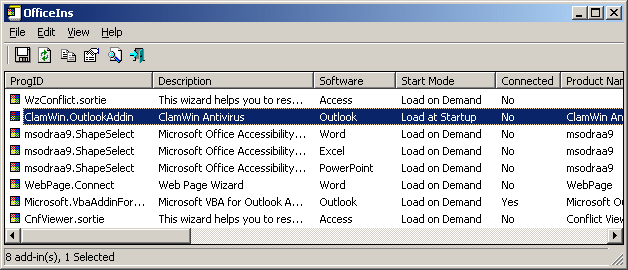
Using OfficeIns
OfficeIns doesn't require any installation process or additional DLLs.
In order to start using it, just copy all files from the ZIP archive into a new folder, and
run the executable file - OfficeIns.exe
The main window of OfficeIns displays the list of all installed add-ins for Microsoft Office products,
including Word, Excel, Outlook, PowerPoint, Project, Access, Visio, and FrontPage.
If you want to disable one or more office add-ins, select the desired add-in items, and from
the File menu (or from the popup menu) select "Change Start Mode->Disabled".
In order to enable back an add-in that you previously disabled, select the previous start mode
under the "Change Start Mode" menu. (In most cases, it'll be "Load At Startup" mode)
Command-Line Options
|
/RemoteComputer <\\ComputerName>
|
Connect to a remote computer on your network, for example:
OfficeIns.exe /RemoteComputer \\MyComp01
OfficeIns.exe /RemoteComputer \\192.168.1.12
| |
/StartMode <Mode 0-3> <Name>
|
Allows you to set the start mode of office addin from command-line.
The Mode parameter is a number between 0 - 3:
0 = Disabled
1 = Load at Startup
2 = Load on Demand
3 = Load at First Time
In the name parameter you should specify the ProgId or the CLSID or the dll filename, for example:
OfficeIns.exe /StartMode 0 "MyAddin.OutlookAddin"
OfficeIns.exe /StartMode 1 "myaddin.dll"
| |
/Connected <Mode 0-1> <Name>
|
Allows you to set the connected mode (0 = No, 1 = Yes)
In the name parameter you should specify the ProgId or the CLSID or the dll filename, for example:
OfficeIns.exe /Connected 0 "MyAddin.OutlookAddin"
OfficeIns.exe /Connected 1 "myaddin.dll"
| |
/stext <Filename>
| Save the list of all installed office add-ins into a regular text file.
| |
/stab <Filename>
| Save the list of all installed office add-ins into a tab-delimited text file.
| |
/stabular <Filename>
| Save the list of all installed office add-ins into a tabular text file.
| |
/shtml <Filename>
| Save the list of all installed office add-ins into HTML file (Horizontal).
| |
/sverhtml <Filename>
| Save the list of all installed office add-ins into HTML file (Vertical).
| |
/sxml <Filename>
| Save the list of all installed office add-ins to XML file.
|
Translating OfficeIns to other languages
In order to translate OfficeIns to other language, follow the instructions below:
- Run OfficeIns with /savelangfile parameter:
officeins.exe /savelangfile
A file named officeins_lng.ini will be created in the folder of OfficeIns utility.
- Open the created language file in Notepad or in any other text editor.
- Translate all string entries to the desired language.
Optionally, you can also add your name and/or a link to your Web site.
(TranslatorName and TranslatorURL values) If you add this information, it'll be
used in the 'About' window.
- After you finish the translation, Run OfficeIns, and all translated
strings will be loaded from the language file.
If you want to run OfficeIns without the translation, simply rename the language file, or move
it to another folder.
License
This utility is released as freeware.
You are allowed to freely distribute this utility via floppy disk, CD-ROM,
Internet, or in any other way, as long as you don't charge anything for this.
If you distribute this utility, you must include all files in
the distribution package, without any modification !
Disclaimer
The software is provided "AS IS" without any warranty, either expressed or implied,
including, but not limited to, the implied warranties of merchantability and fitness
for a particular purpose. The author will not be liable for any special, incidental,
consequential or indirect damages due to loss of data or any other reason.
Feedback
If you have any problem, suggestion, comment, or you found a bug in my utility,
you can send a message to nirsofer@yahoo.com
OfficeIns is also available in other languages. In order to change the language of
OfficeIns, download the appropriate language zip file, extract the 'officeins_lng.ini',
and put it in the same folder that you Installed OfficeIns utility.
|
|