| |

| ResourcesExtract v1.18 - Extract resource files (bitmaps, icons, html files, and more) from dll files
Copyright (c) 2008 - 2014 Nir Sofer
|
Related Utilities
Description
ResourcesExtract is a small utility that scans dll/ocx/exe files and extract all resources
(bitmaps, icons, cursors, AVI movies, HTML files, and more...) stored in them into the folder that you specify.
You can use ResourcesExtract in user interface mode, or alternatively, you can run ResourcesExtract in command-line mode without displaying any user interface.
System Requirements
This utility works on any version of Windows, from Windows 98 to Windows 8.
For using this utility under Windows 98/ME, you must download the non-Unicode version.
Versions History
- Version 1.18:
- Version 1.17:
- Fixed bug: ResourcesExtract didn't extract some of the binary resources
when 'Other Binary Resources' option is turned on.
- Version 1.16:
- Fixed tab order issue in the main window.
- Version 1.15:
- Added 'Multiple Files Mode', which allows you to extract the resources of every dll in a separated subfolder.
- Version 1.12:
- Added Drag & Drop support - dragging a file from Explorer window put it in the source filename field.
dragging a folder from Explorer window put it as the destination folder.
- Version 1.11:
- Added support for choosing SubFolders depth in scanning.
- Version 1.10:
- Added new options: 'Save Config' and 'Load Config'
- Added new command-line option: /LoadConfig - Start ResourcesExtract with the specified config file.
- Added new command-line option: /RunConfig - Extract resources according to the specified config file, without user interface.
- Version 1.04:
- The filename of binary resource is now also contains the resource type name. (For example: mydll_2001_BINARY.bin)
- Version 1.03:
- Added support for string resources (saved as text file)
- Version 1.02:
- The main dialog-box is now resizable.
- Version 1.01:
- New option: Save bitmaps as .PNG file
- Added AutoComplete to filename text-box.
- Version 1.00 - First release.
Using ResourcesExtract
ResourcesExtract doesn't require any installation process or additional DLL files.
In order to start using it, simply run the executable file (ResourcesExtract.exe).
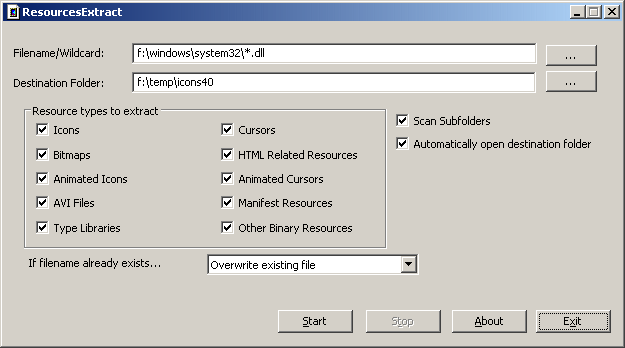
In the main window of ResourcesExtract, you can choose a single filename to scan (e.g: c:\windows\system32\shell32.dll),
or multiple filenames by using wildcard (e.g: c:\windows\system32\*.dll).
In the 'Destination Folder', type the folder that you want to extract the resources files into.
After you select all other options, click the 'Start' button in order to extract the resources.
Using ResourcesExtract From Command-Line
In order to extract the resources from command-line,
you can use one or more from the following command-line parameters. Any parameter that you don't specify in the command-line is automatically loaded from the configuration file of ResourcesExtract (ResourcesExtract.cfg).
|
/LoadConfig <Config Filename>
|
Start ResourcesExtract with the specified config file.
| |
/RunConfig <Config Filename>
|
Extract resources according to the specified config file, without user interface
| |
/Source <filename>
| Specifies the filename or wildcard that you want to scan.
| |
/DestFolder <folder>
| Specifies the folder to extract all resource files.
| |
/ExtractIcons <0 | 1>
|
Specifies whether you want to extract icon resources. Specify 1 to extract the icons or 0 to skip the icon resources.
| |
/ExtractCursors <0 | 1>
|
Specifies whether you want to extract cursor resources. Specify 1 to extract the cursors or 0 to skip the cursor resources.
| |
/ExtractBitmaps <0 | 1>
|
Specifies whether you want to extract bitmap resources.
| |
/ExtractHTML <0 | 1>
|
Specifies whether you want to extract HTML resources.
| |
/ExtractManifests <0 | 1>
|
Specifies whether you want to extract manifest resources.
| |
/ExtractAnimatedIcons <0 | 1>
|
Specifies whether you want to extract animated icons.
| |
/ExtractAnimatedCursors <0 | 1>
|
Specifies whether you want to extract animated cursors.
| |
/ExtractAVI <0 | 1>
|
Specifies whether you want to extract avi resources.
| |
/ExtractTypeLib <0 | 1>
|
Specifies whether you want to extract type libraries.
| |
/ExtractBinary <0 | 1>
|
Specifies whether you want to extract binary resources.
| |
/ScanSubFolders <0 | 1>
|
Specifies whether you want to scan subfolders.
| |
/SubFolderDepth <Depth>
|
Specifies the subfolders depth value. 0 = Unlimited.
| |
/FileExistMode <1 | 2>
|
Specify 1 if you want to overwrite existing filenames, or 2 to save to another name when filename already exists.
| |
/OpenDestFolder <0 | 1>
|
Specify 1 if you want to open the destination folder automatically.
|
Here's some examples:
ResourcesExtract.exe /Source "f:\windows\system32\shell32.dll" /DestFolder "f:\temp\resources" /ExtractIcons 1 /ExtractCursors 1
ResourcesExtract.exe /Source "c:\windows\system32\*.dll" /DestFolder "c:\temp\resources" /ExtractIcons 1 /ExtractCursors 0 /ScanSubFolders 1
ResourcesExtract.exe /Source "f:\windows\system32\shell32.dll" /DestFolder "f:\temp\resources" /FileExistMode 2
Translating ResourcesExtract to other languages
In order to translate ResourcesExtract to other language, follow the instructions below:
- Run ResourcesExtract with /savelangfile parameter:
ResourcesExtract.exe /savelangfile
A file named ResourcesExtract_lng.ini will be created in the folder of ResourcesExtract utility.
- Open the created language file in Notepad or in any other text editor.
- Translate all string entries to the desired language.
Optionally, you can also add your name and/or a link to your Web site.
(TranslatorName and TranslatorURL values) If you add this information, it'll be
used in the 'About' window.
- After you finish the translation, Run ResourcesExtract, and all translated
strings will be loaded from the language file.
If you want to run ResourcesExtract without the translation, simply rename the language file, or move
it to another folder.
License
This utility is released as freeware.
You are allowed to freely distribute this utility via floppy disk, CD-ROM,
Internet, or in any other way, as long as you don't charge anything for this.
If you distribute this utility, you must include all files in
the distribution package, without any modification !
Disclaimer
The software is provided "AS IS" without any warranty, either expressed or implied,
including, but not limited to, the implied warranties of merchantability and fitness
for a particular purpose. The author will not be liable for any special, incidental,
consequential or indirect damages due to loss of data or any other reason.
Feedback
If you have any problem, suggestion, comment, or you found a bug in my utility,
you can send a message to nirsofer@yahoo.com
ResourcesExtract is also available in other languages. In order to change the language of
ResourcesExtract, download the appropriate language zip file, extract the 'resourcesextract_lng.ini',
and put it in the same folder that you Installed ResourcesExtract utility.
|
|