| |

| ShellMenuView v1.41 - Disable / enable context menu items of Explorer
Copyright (c) 2005 - 2019 Nir Sofer
|
Related Utilities
- ShellExView - Allows you to disable shell extensions that add dynamic menu items to the context menu of Explorer.
- FileTypesMan - File Types Manager for Windows.
- OpenWithView - Disable/Enable items in the 'Open With' dialog-box of Windows.
- ShellMenuNew - Disable/enable 'New' menu items in Windows Explorer.
Related Links
Description
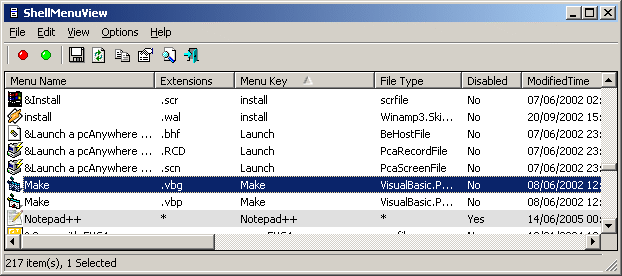
ShellMenuView is a small utility that displays the list of static menu items that appeared in the context menu when you right-click a file/folder on Windows Explorer, and
allows you to easily disable unwanted menu items.
System Requirements
ShellMenuView works properly on any version of Windows starting from Windows 2000 and up to Windows 10.
You can also use ShellMenuView on Windows 98 for viewing the menu items list,
but the disable/enable feature won't work on this version of Windows.
(The disabling feature is achieved by adding 'LegacyDisable' key to the desired menu item
in the Registry, and this Registry key is not supported by Windows 98)
Notice !
Some of the menu items in the context menu of Explorer are created dynamically using shell extensions.
In these cases, you can use the ShellExView utility to disable them.
Versions History
- Version 1.41
- Version 1.40
- Added 'Quick Filter' feature (View -> Use Quick Filter or Ctrl+Q). When it's turned on, you can type a string in the text-box added under the toolbar and ShellMenuView will instantly filter the menu items, showing only items that contain the string you typed.
- Version 1.38
- Added 'Auto Size Columns+Headers' option.
- Version 1.37
- ShellMenuView now displays menu items that their command string is empty but they have DelegateExecute string instead.
- Version 1.36
- When the menu name is a string resource, ShellMenuView now automatically loads the string resource and displays the actual menu string.
- Version 1.35
- Added the menu items of Directory\Background and Drive\Background Registry keys.
- Version 1.30
- Fixed the extension column: For Menu items that are currently not assigned to any file extension, the extension column now remains empty.
- Added 'UserChoice Key' column. If the value is 'Yes', it means that the reference to the menu item is found in HKEY_CURRENT_USER\Software\Microsoft\Windows\CurrentVersion\Explorer\FileExts\[File Extension]\UserChoice
- Added 'Registry Key' column.
- Added 'Hide Items Without File Extension' option.
- Version 1.25
- Fixed ShellMenuView to detect the correct file type, when a file extension has a UserChoice key (Windows Vista or later).
In previous versions, ShellMenuView failed to work properly with all file extension that their UserChoice value is different from their file type.
The UserChoice key is stored under HKEY_CURRENT_USER\Software\Microsoft\Windows\CurrentVersion\Explorer\FileExts\[extension]\UserChoice
- Fixed ShellMenuView to use the correct file type Registry key, when there is a CurVer subkey that redirects to other file type key.
- Version 1.21
- Added secondary sorting support: You can now get a secondary sorting, by holding down the shift key while clicking the column header. Be aware that you only have to hold down the shift key when clicking the second/third/fourth column. To sort the first column you should not hold down the Shift key.
- Fixed the 'Modified Time' column to handle the daylight saving time properly.
- Version 1.20
- Added support for menu items stored under SystemFileAssociations Registry key (For Windows 7/2008/Vista)
- Version 1.15
- Added warnings and restrictions, to prevent the users from disabling essential menu commands of
Windows operating system.
- Added documentation to the save command line options.
- Added /sort command-line option.
- Version 1.12
- Added an option to open the page of selected extension in http://extension.nirsoft.net Web site,
which shows you a list of programs that can open this file extension.
- Version 1.11
- Added 'Type Description' column.
- Version 1.10
- Added support for setting or removing the extended mode of menu items.
When menu item is in extended mode, the item is displayed only if you press the Shift key when the context menu is opened.
- Version 1.07
- Fixed bug: ShellMenuView crashed on reading Registry value with size of 0 bytes.
- Version 1.06
- Added 'Open In RegEdit' option.
- Version 1.05
- Fixed bug: ShellMenuView opened in a large window when there is no cfg file.
- Version 1.04
- Fixed bug: The main window lost the focus when the user switched to another application and then returned back to ShellMenuView.
- Version 1.03
- Fixed crash problem that appeared in some computers.
- Version 1.02
- ShellMenuView now automatically requires to run as administrator under Vista.
- Added 64-bit version of ShellMenuView.
- Version 1.01
- Added 'Show Tooltips' option.
- The configuration of ShellMenuView is now saved to cfg file instead of the Registry.
- Version 1.00 - First Release.
Using ShellMenuView
ShellMenuView doesn't require any installation process or additional DLLs.
In order to start using it, just copy the executable file (shmnview.exe) to any folder you like,
and run it.
The main window of ShellMenuView displays the list of menu items. You can select one or more
menu item, and enable/disable them.
You can also set or remove the extended mode of menu item.
When menu item is in extended mode, the item is displayed only if you press the Shift key when the context menu is opened.
Command-Line Options
|
/stext <Filename>
| Save the list of menu commands into a regular text file.
| |
/stab <Filename>
| Save the list of menu commands into a tab-delimited text file.
| |
/scomma <Filename>
| Save the list of menu commands into a comma-delimited text file (csv).
| |
/stabular <Filename>
| Save the list of menu commands into a tabular text file.
| |
/shtml <Filename>
| Save the list of menu commands into HTML file (Horizontal).
| |
/sverhtml <Filename>
| Save the list of menu commands into HTML file (Vertical).
| |
/sxml <Filename>
| Save the list of menu commands into XML file.
| |
/sort <column>
|
This command-line option can be used with other save options for sorting by the desired column.
If you don't specify this option, the list is sorted according to the last sort that you made from the user interface.
The <column> parameter can specify the column index (0 for the first column, 1 for the second column, and so on) or
the name of the column, like "Menu Key" and "File Type".
You can specify the '~' prefix character (e.g: "~Modified Time") if you want to sort in descending order.
You can put multiple /sort in the command-line if you want to sort by multiple columns.
Examples:
shmnview.exe /shtml "f:\temp\menus.html" /sort 2 /sort ~1
shmnview.exe /shtml "f:\temp\menus.html" /sort "Menu Name" /sort "Extensions"
| |
/nosort
|
When you specify this command-line option, the list will be saved without any sorting.
|
License
This utility is released as freeware.
You are allowed to freely distribute this utility via floppy disk, CD-ROM,
Internet, or in any other way, as long as you don't charge anything for this.
If you distribute this utility, you must include all files in
the distribution package, without any modification !
Disclaimer
The software is provided "AS IS" without any warranty, either expressed or implied,
including, but not limited to, the implied warranties of merchantability and fitness
for a particular purpose. The author will not be liable for any special, incidental,
consequential or indirect damages due to loss of data or any other reason.
Translating ShellMenuView to other languages
In order to translate ShellMenuView to other language, follow the instructions below:
- Run ShellMenuView with /savelangfile parameter:
shmnview.exe /savelangfile
A file named shmnview_lng.ini will be created in the folder of ShellMenuView utility.
- Open the created language file in Notepad or in any other text editor.
- Translate all string entries to the desired language.
Optionally, you can also add your name and/or a link to your Web site.
(TranslatorName and TranslatorURL values) If you add this information, it'll be
used in the 'About' window.
- After you finish the translation, Run ShellMenuView, and all translated
strings will be loaded from the language file.
If you want to run ShellMenuView without the translation, simply rename the language file, or move
it to another folder.
Feedback
If you have any problem, suggestion, comment, or you found a bug in my utility,
you can send a message to nirsofer@yahoo.com
ShellMenuView is also available in other languages. In order to change the language of
ShellMenuView, download the appropriate language zip file, extract the 'shmnview_lng.ini',
and put it in the same folder that you Installed ShellMenuView utility.
|
|