| |

| NetResView v1.27
Copyright (c) 2005 - 2013 Nir Sofer
|
Related Links
Description
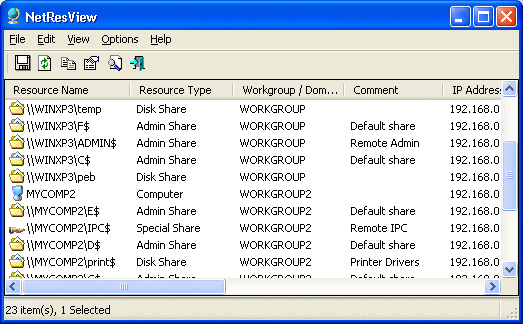
NetResView is a small utility that displays the list of all network resources (computers, disk shares, and printer shares) on your LAN.
As opposed to "My Network Places" module of Windows, NetResView display all network resources from all domains/workgroups in one screen, and including admin/hidden shares.
Search for other utilities in NirSoft
System Requirements
- Windows 2000/XP/2003/Vista/7/2008/8
- Access to your local area network.
Versions History
- Version 1.27
- Fixed to work with the latest versions of oui.txt
- Version 1.26
- Added /start command-line option, which allows you to scan the network resources immediately with the last settings without displaying the
'Advanced Options' dialog-box.
- Version 1.25
- Added support for saving the network resource information into csv (comma-delimited) file.
- Added 'Add Header Line To CSV/Tab-Delimited File' option. When this option is turned on, the column names are added as the first line when you export to csv or tab-delimited file.
- Version 1.21
- Added Windows Server 2008 and Windows 7 to the operating system names. (In previous versions,
Windows 7/2008 computers were detected as Windows Vista).
- Version 1.20
- Added command-line support.
- Fixed window focus problems.
- Version 1.16
- Fixed bug: In some computers, Exception window appeared when starting NetResView.
- Version 1.15
- Instead of start scanning immediately after loading, NetResView now allows you to choose the
scan options before starting to scan.
- Added new option: Enumerate only the specified domains. (Using this option can make the network scanning process much faster)
- Added 'MAC Address Company' column. (Requires to download external file)
- Version 1.11
- The configuration is now saved to a file, instead of the Registry.
- Version 1.10
- New column - OS Name.
- New column - Computer Attributes. (PDC, BDC, SQL Server, and so on...)
- New Option - Retrieve MAC Addresses.
- A tooltip is displayed when a string in a column is longer than the column length.
- Version 1.00 - First Release.
Using NetResView
NetResView doesn't require any installation process or additional DLLs.
In order to start using it, just copy the executable file (NetResView.exe) to any folder you like, and run it.
When you run NetResView utility, it displays the 'Advanced Options' dialog-box that allows you
to select the right scanning options.
After clicking 'Ok', NetResView scan all computers on your LAN, according to the scan options that you chose.
Advanced Options
In the 'Advanced Options' window (under Options menu), you can configure the settings of NetResView.
Here's some tips for NetResView settings:
- If you only need to view the list of computers on your network (without viewing the network shares),
uncheck the "Display Shared Resources" option. Without this option, the loading process will be faster.
- If NetResView fails to retrieve some of the IP addresses or network shares, try to increase the timeout values.
- If the loading process is too slow, try to decrease the timeout values.
- If you want to view the MAC address of each computer in your network, select the "Retrieve MAC Addresses" option.
The 'MAC Address Company' Column
Starting from version 1.15, NetResView allows you to view the company name of each network card.
The company name is determined according to the MAC address.
However, in order to get this feature, you must download the following external file, and put in the same folder
of NetResView.exe: http://standards.ieee.org/develop/regauth/oui/oui.txt
Be aware that you must save it as 'oui.txt'
Command-Line Options
|
/start
|
Scan the network resources immediately with the last settings without displaying the
'Advanced Options' dialog-box.
| |
/DisplayShares <0 | 1>
|
Specifies whether to display network shares.
0 = No, 1 = Yes.
| |
/DisplayComputers <0 | 1>
|
Specifies whether to display network computers.
0 = No, 1 = Yes.
| |
/RetrieveIPAddresses <0 | 1>
|
Specifies whether to retrieve IP addresses.
0 = No, 1 = Yes.
| |
/RetrieveMACAddresses <0 | 1>
|
Specifies whether to retrieve MAC addresses.
0 = No, 1 = Yes.
| |
/ShareTimeout <Number>
|
Timeout value for retrieving shared resources (in milliseconds)
| |
/IPTimeout <Number>
|
Timeout value for retrieving IP addresses (in milliseconds)
| |
/stext <Filename>
| Save the list of network resources into a regular text file.
| |
/stab <Filename>
| Save the list of network resources into a tab-delimited text file.
| |
/scomma <Filename>
| Save the list of network resources into a comma-delimited text file.
| |
/stabular <Filename>
| Save the list of network resources into a tabular text file.
| |
/shtml <Filename>
| Save the list of network resources into HTML file (Horizontal).
| |
/sverhtml <Filename>
| Save the list of network resources into HTML file (Vertical).
| |
/sxml <Filename>
| Save the list of network resources into XML file.
|
License
This utility is released as freeware.
You are allowed to freely distribute this utility via floppy disk, CD-ROM,
Internet, or in any other way, as long as you don't charge anything for this.
If you distribute this utility, you must include all files in
the distribution package, without any modification !
Be aware that selling this utility as a part of a software package is not allowed !
Disclaimer
The software is provided "AS IS" without any warranty, either expressed or implied,
including, but not limited to, the implied warranties of merchantability and fitness
for a particular purpose. The author will not be liable for any special, incidental,
consequential or indirect damages due to loss of data or any other reason.
Translating NetResView to other languages
In order to translate NetResView to other language, follow the instructions below:
- Run NetResView with /savelangfile parameter:
NetResView.exe /savelangfile
A file named NetResView_lng.ini will be created in the folder of NetResView utility.
- Open the created language file in Notepad or in any other text editor.
- Translate all string entries to the desired language.
Optionally, you can also add your name and/or a link to your Web site.
(TranslatorName and TranslatorURL values) If you add this information, it'll be
used in the 'About' window.
- After you finish the translation, Run NetResView, and all translated
strings will be loaded from the language file.
If you want to run NetResView without the translation, simply rename the language file, or move
it to another folder.
Feedback
If you have any problem, suggestion, comment, or you found a bug in my utility,
you can send a message to nirsofer@yahoo.com
NetResView is also available in other languages. In order to change the language of
NetResView, download the appropriate language zip file, extract the 'netresview_lng.ini',
and put it in the same folder that you Installed NetResView utility.
|
|